Workspace
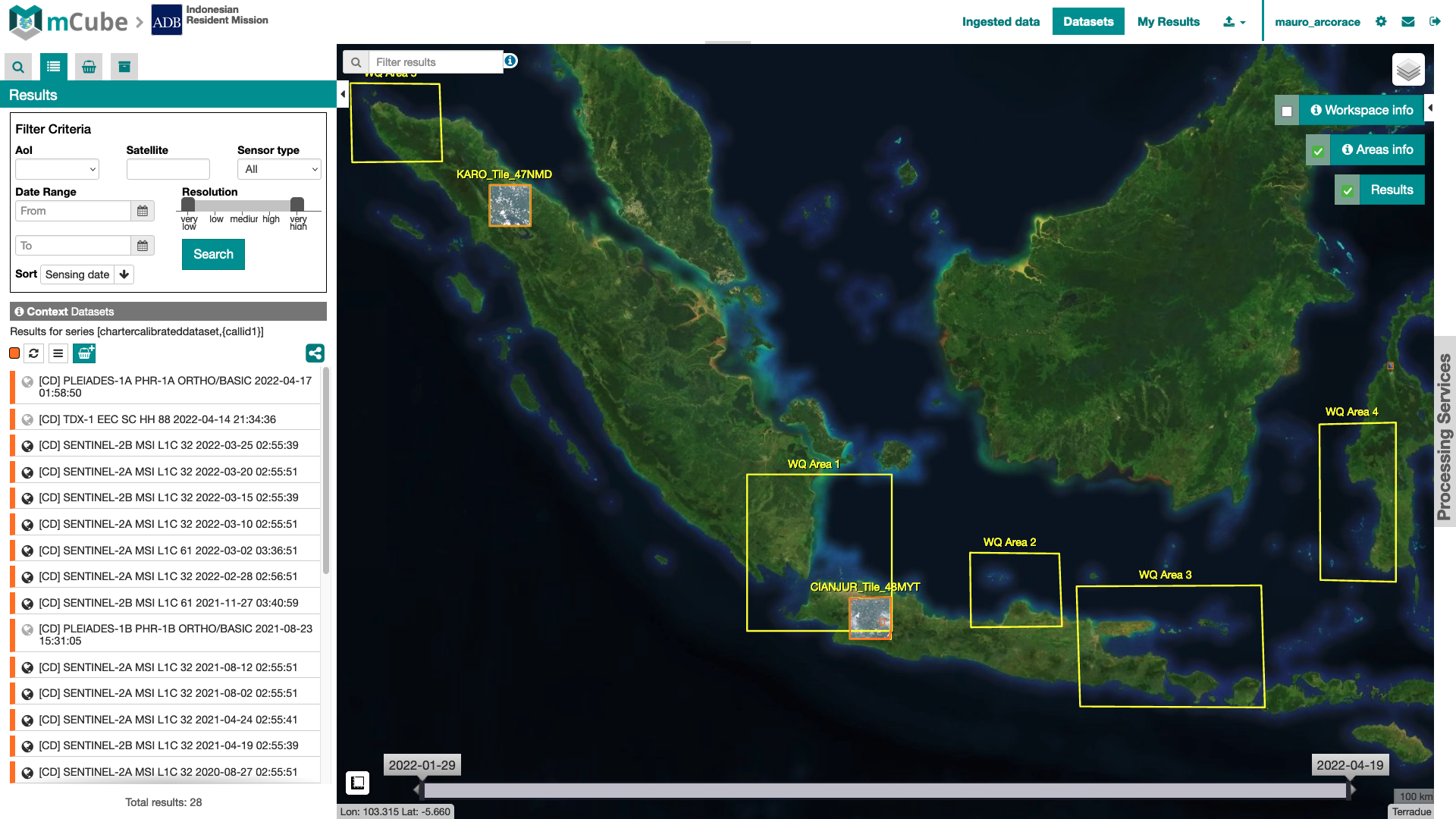
The workspace is a web application dedicated to users and focused on a specific project.
Purpose
Upon request a workspace dedicated for a specific organization can be created in mCube to let authorized users to work in an area of the world in the context of particular project. In this workspace users can search, view and process EO data to generate Value Added Products.
The workspace allows the user to:
- explore the EO Data: when they want to browser the satellite datasets via a full resolution raster overlayed on the map;
- explore the Value-Added Product: when they want to screen advanced products provided by the organisations to help in the analysis;
- Search for Data: when they want to search manually for EO data in the data collections;
- data upload & download: when they want to upload their own datasets from their local workstation or download any previously found data;
- submit processing: when they want to apply a Thematic Processor treatment to any of the datasets, and then view the results as part of the analysis.
Contexts menu organization
The contexts menu for an mCube Workspace contains activation-related data collection:
-
Ingested Data: EO products notified by multiple EO data sources that may be grouped by mission, sensor type or any other metadata,
-
Datasets: pre-processed (calibrated) products generated by mCube during the ingestion of acquisitions received from multiple EO data sources,
-
My Results: products generated by the processing services.

At first opening, the Workspace points on the Acquisition context.
Activation and Areas information
Two dedicated widgets will appear on the right side of the interface where the user can find additional information about the Activation and the Areas of Interest. Both widgets have a checkbox, to show/hide the relative data on the map, and a button, to open a popup with the relative information.
Workspace info
By clicking on the "Workspace Info" button, a dedicated draggable and resizable window will appear, containing the detaila about the project:
Areas info
The "Areas Info" widget is linked on the Call areas of interest footprints, which by default are visible on the map. By clicking on Areas Info button, a draggable and resizable window, will be open. In this window users can interact with the single areas, in particular user can:
- bring to front/back the areas layer;
- pan the map to the entire areas bounding box;
- check out the list of the areas;
- click on a single area text to zoom on the relative area - a popup with filter tool appears, to apply a spatial filter on current data search;
- show/hide the single area footprint;
- change the sisualization style of the areas footprint (color, background, background opacity, and so on)
By clicking on the checkbox, like for activation info widget, it's possible to toggle the entire areas layer on the map.
Processing
In the right of the interface the Workspace includes the Processing Services Panel where users are allowed to perform on-demand processing using the datasets.
- See Processing Services Panel to check out how the Processing Services Panel works;
- Click here to check out the service available in mCube.