EO data visualization
Full resolution browse (Overviews)
mCube allows the users to visualize EO data imported, pre-processed and available in a workspace.
In the workspace provided by mCube the user is able to visualize the ingested and calibrated EO data at the highest possible resolution. Thus in the mCube workspace user can display EO data at full resolution directly with one click in the map.
Note
The access to commercial EO data supported by mCube in the workspace is ruled by terms and conditions of the license agreement of the product delivered by the spacce agency or distributor. Only authorized users after the sign-in can access commercial EO data in mCube.
The background pre-processing services provide the user with directly usable geospatial information with basic services to support image analysis. In Datasets, mCube extracts intra-product components within an EO data product, single bands or three bands grouped in the form of a Red, Green and Blue (RGB) composite.
To ease visualization and analysis, mCube can also offer to the user the option to make custom RGB composites obtained by an on the fly computation of single band assets. Single bands and groups of bands are referred to as assets. Several assets can be derived from a single EO data product.
Single-band and multi-band assets are pre-defined in mCube and can be used directly (Select Asset) or combined ad-hoc by the user (Combine Assets) within the Titiler widget. More details about TiTiler can be found here.
Pre-defined RGB composites using Select Asset
Intra-sensor single-band and overview products available for a Dataset can be visualized in the map by selecting a desired product under Details > View Options > Select Asset from the left panel of the interface (See Figure 1). The pre-defined Overview products are derived as a full resolution RGBA georeferenced image obtained with different pre-defined band combinations by combining the single-band assets included in the Dataset. Overviews products at full resolution are available in mCube for both optical and SAR data.
Multiple types of pre-defined overviews products are available in mCube for optical data. In Figure 1 is shown an example of overview product which can be immediately displayed in the map from a calibrated multispectral Pleiades-1B Dataset: the True Color RGB composite (overview-trc).
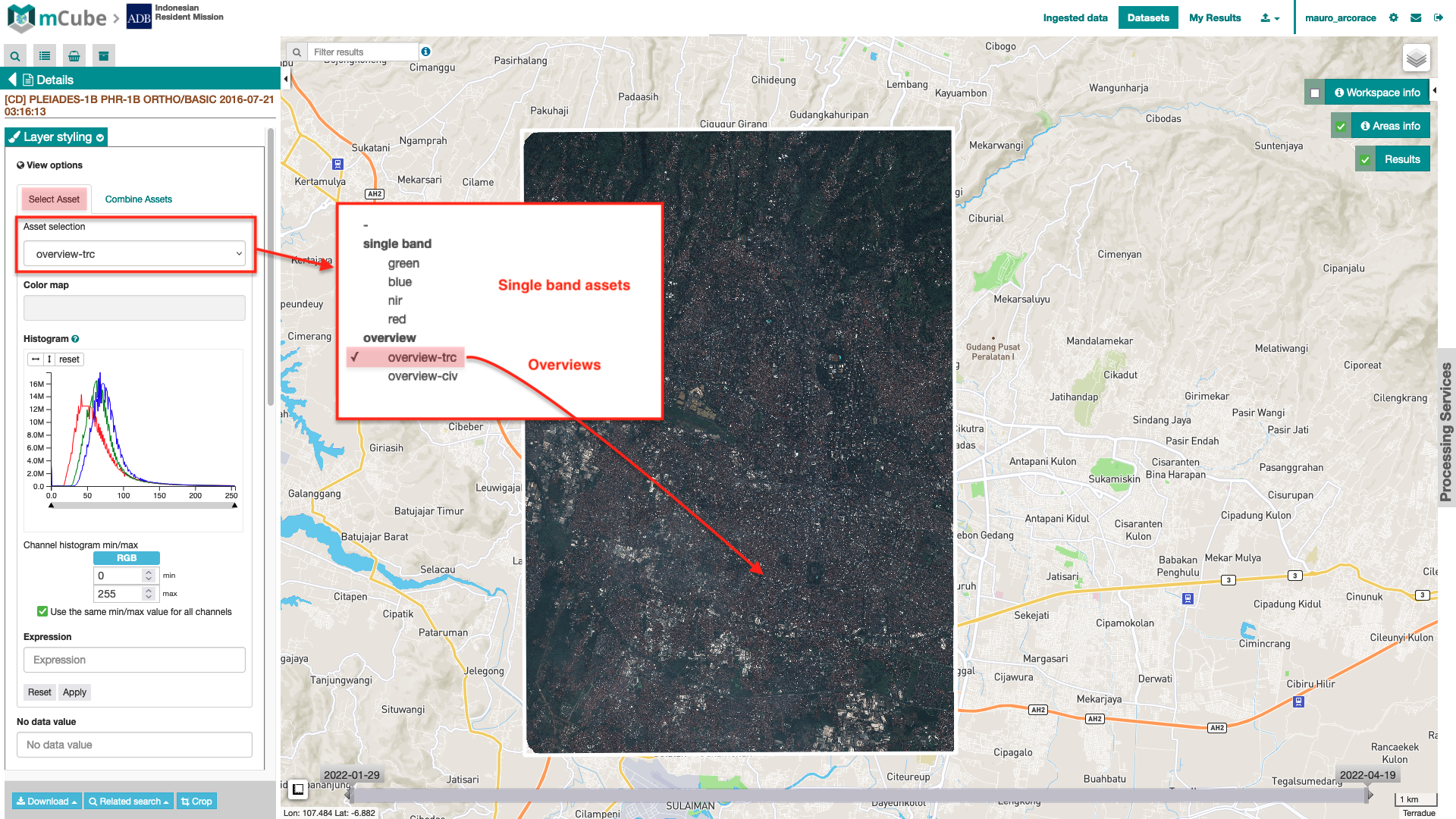
Figure 1 - A sample usage of the Select Asset function available under View Options from the Details of a Pleiades-1B Dataset calibrated by mCube over Java, Indonesia (Image credit: AIRBUS, CNES).
Also, in the below Figures 2, 3, 4, and 5 are shown examples of overview products that mCube systematically derives from a calibrated Sentinel-2 Dataset.
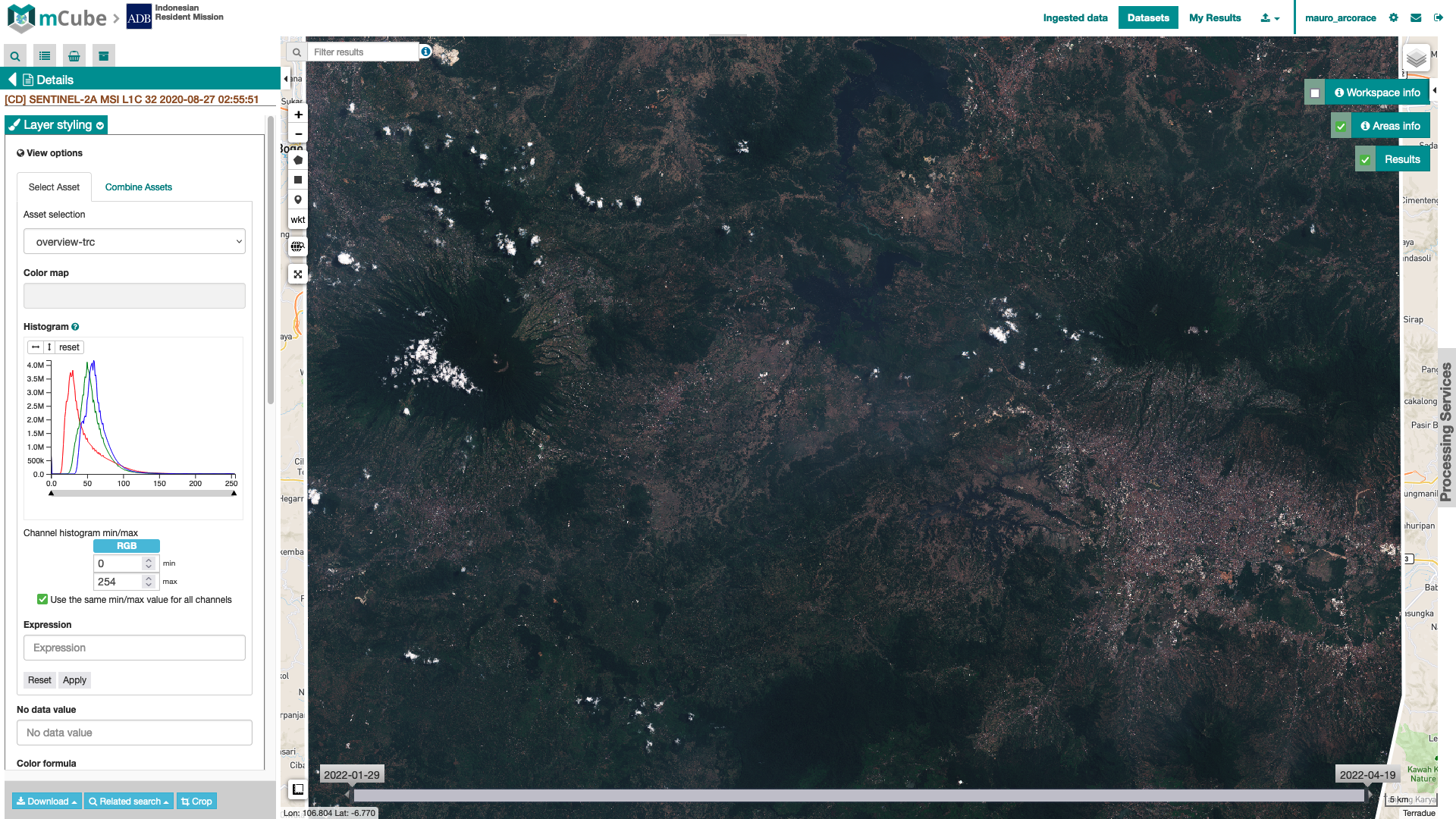
Figure 2 - True Color (TRC) RGB composite from Sentinel-2 data acquired over Java, Indonesia (Image credit: Copernicus, ESA).
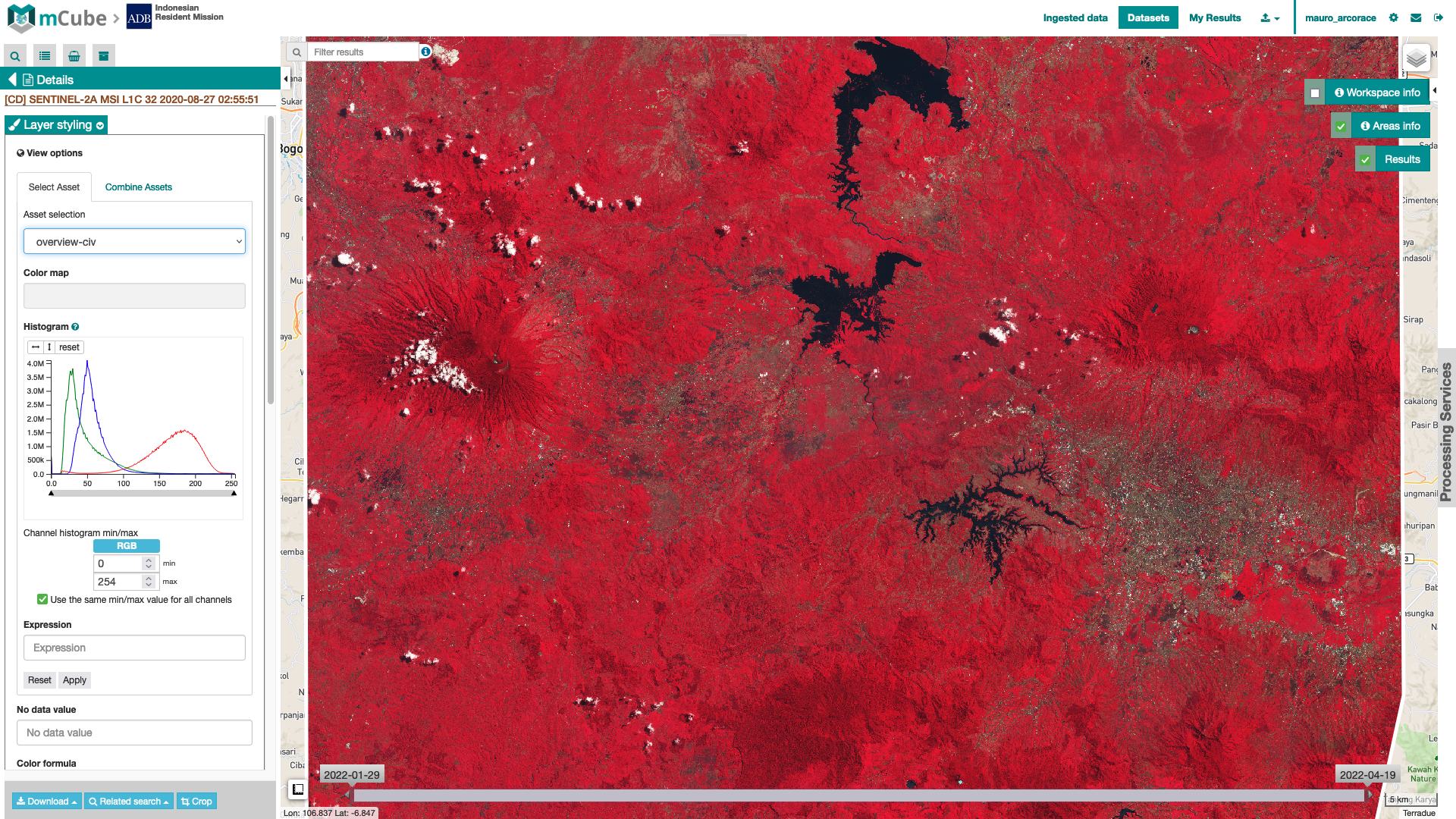
Figure 3 - Color Infrared Vegetation (CIV) RGB composite from Sentinel-2 data acquired over Java, Indonesia (Image credit: Copernicus, ESA).
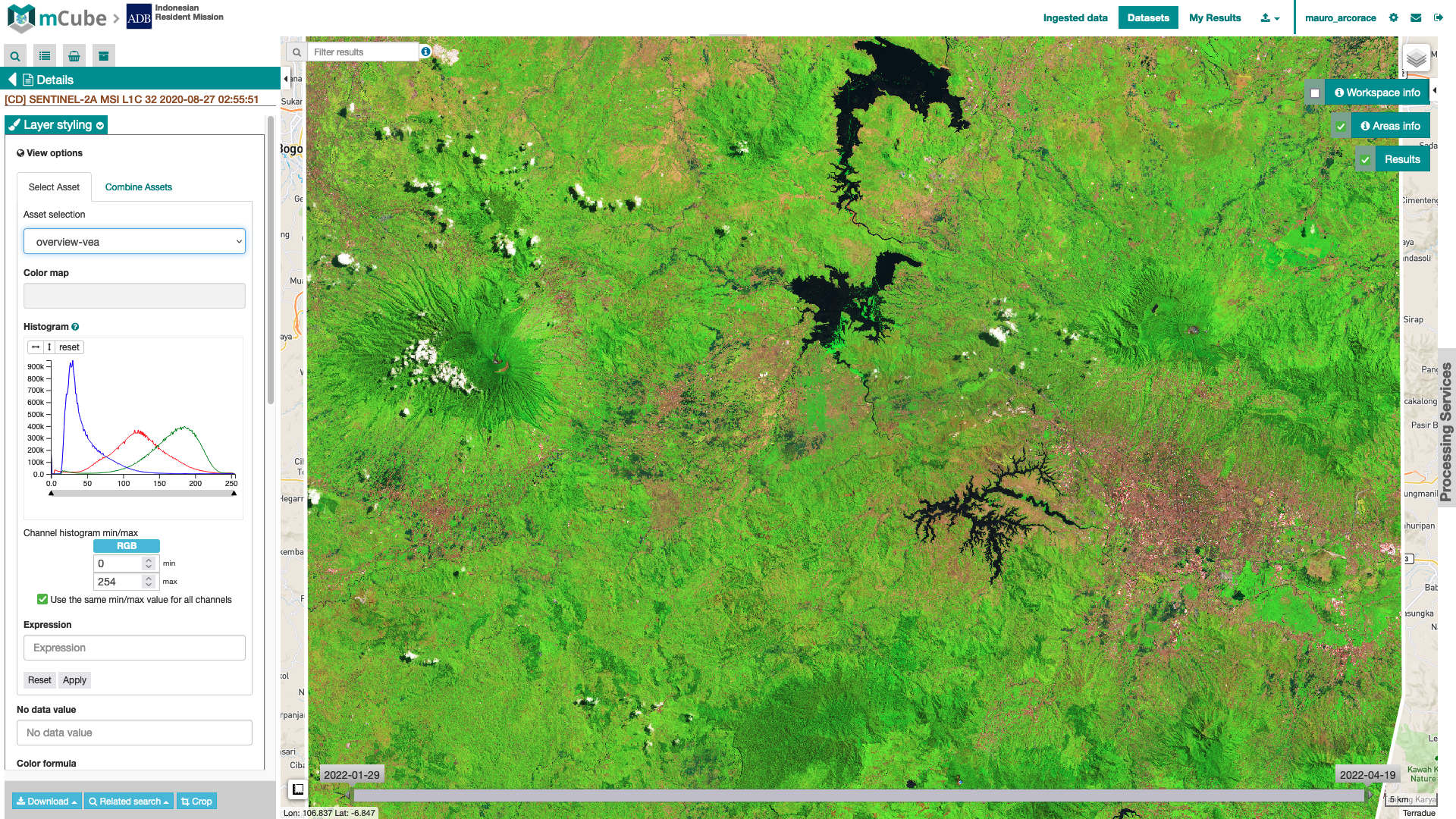
Figure 4 - Vegetation Analysis (VEA) RGB composite from Sentinel-2 data acquired over Java, Indonesia (Image credit: Copernicus, ESA).
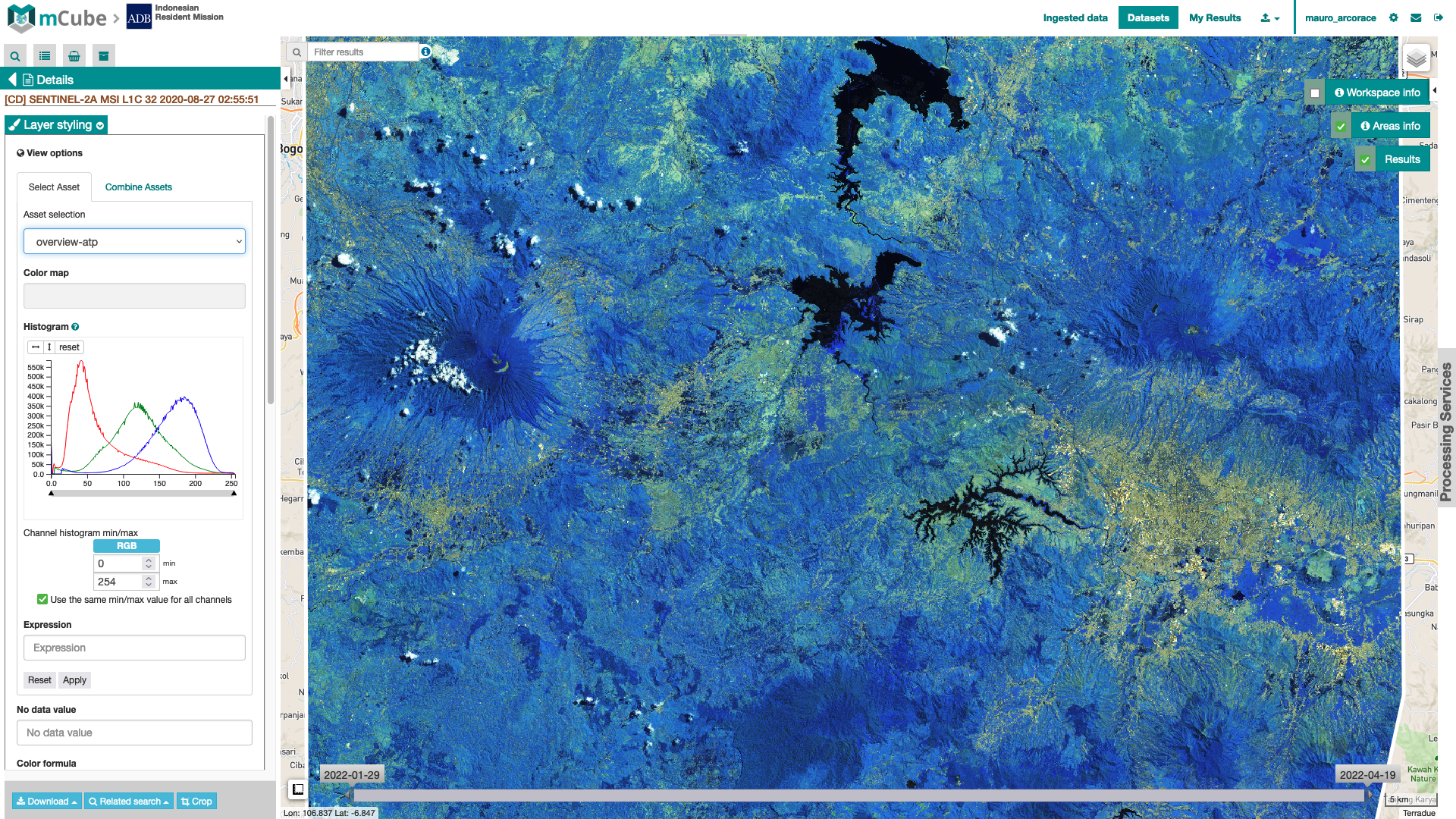
Figure 5 - Atmospheric Penetration (ATP) RGB composite from Sentinel-2 data acquired over Java, Indonesia (Image credit: Copernicus, ESA).
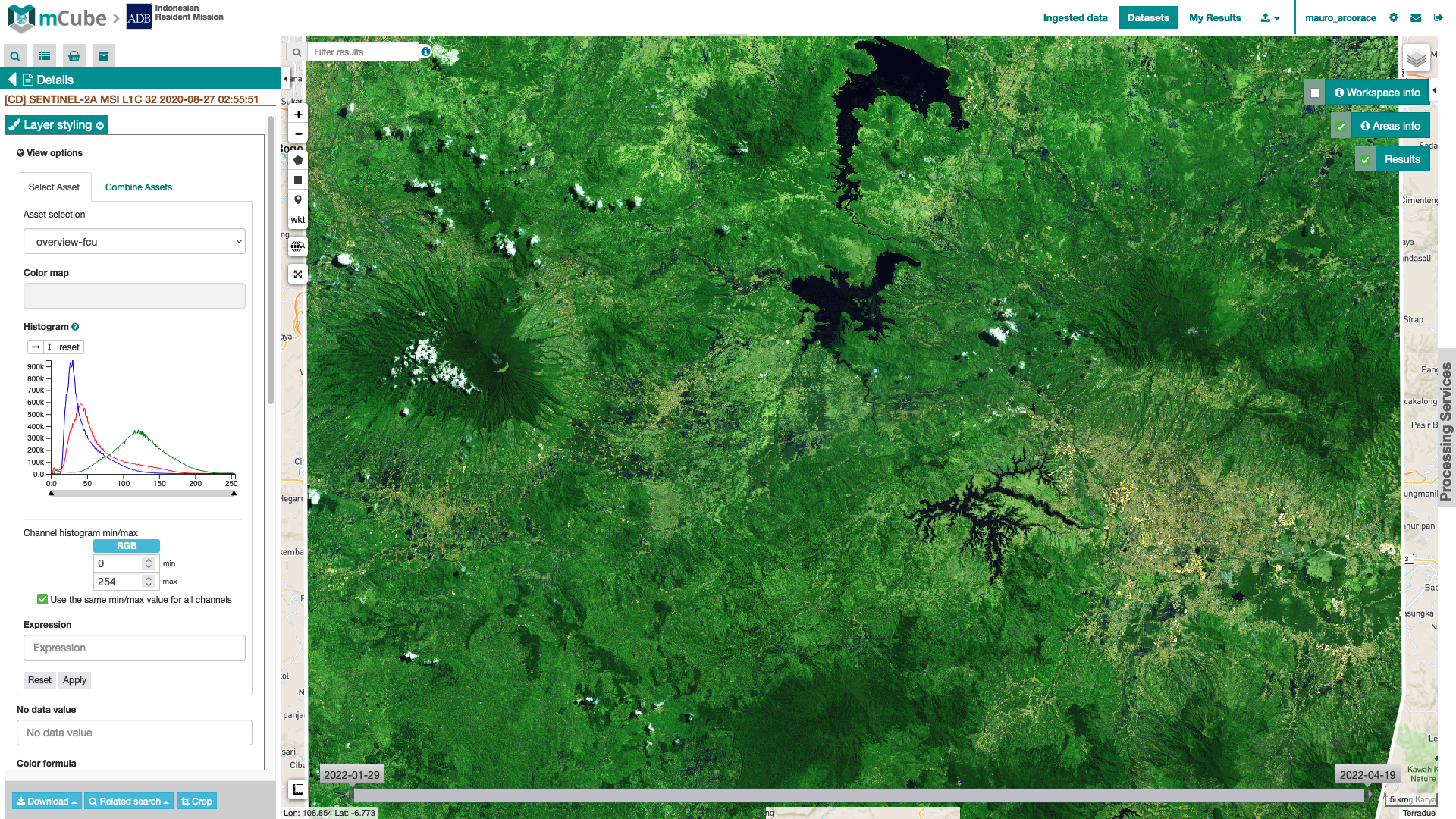
Figure 6 - False Color Urban (FCU) RGB composite from Sentinel-2 data acquired over Java, Indonesia (Image credit: Copernicus, ESA).
More information about the possible RGB composite options for Optical data available in mCube can be found here.
The same applies for SAR data where the single-band assets are the Sigma Nought in dB images for all the polarization included into the Dataset (e.g. s0_db_l_vv for L-band SAR data in VV polarization). The number of single-band and overview products that mCube systematically derives from a Calibrated Dataset depends on the number of polarizations contained in the source EO data product.
The single pol overviews (e.g. overview-hh) are grayscale full res browse visual products. Instead, the overviews overview-dual or overview-full are RGBA combinations that mCube systematically produces from the single-band assets of a Calibrated Dataset in case of a dual- or a full-pol SAR data. Dual pol or Full pol calibrated datasets includes only one RGB composite, which are respectively overview-dual or overview-full.
As an example for a SAOCOM-1 full pol data nCube will offer to the user 4 single band assets for Sigma Nought in dB: s0_db_l_hh, s0_db_l_hv, s0_db_l_vh, and s0_db_l_vv, and 5 multi-band assets for the overviews overview-full, overview-hh, overview-hv, overview-vh, and overview-vv.
More information about the RGB composites systematically derived in mCube from SAR data can be found here.
Finally, product specifications about the Overviews derived from mCube can be found here.
Histogram visualization
Once a layer of interest is selected by the user mCube offers the possibility to visualize the histogram for each of the assets of the Dataset (e.g. frequency distribution function of pixel values for the nir band of a Landsat-8 calibrated dataset) in a tab within the left panel.
Having the histogram of an element of an Asset (TOA reflectance for a spectral band, sigma nought in VV) is important to evaluate the signal which has been recorded by the sensor over the entire scene (e.g. to assess TOA reflectance in each spectral bands, or to recognize a two lobes histogram of a SAR intensity image having water/non-water surfaces).
In mCube, histograms appear next to the geobrowser map in the left panel of the interface (see Figure 7) to let the user evaluate simultaneously the changes in the image visualization on the map.
The platform lets the user set min/max of the histogram (e.g. of TOA reflectance or sigma nought in dB) to apply the desired image stretching. This is made possible by moving from the full range to a desired one.
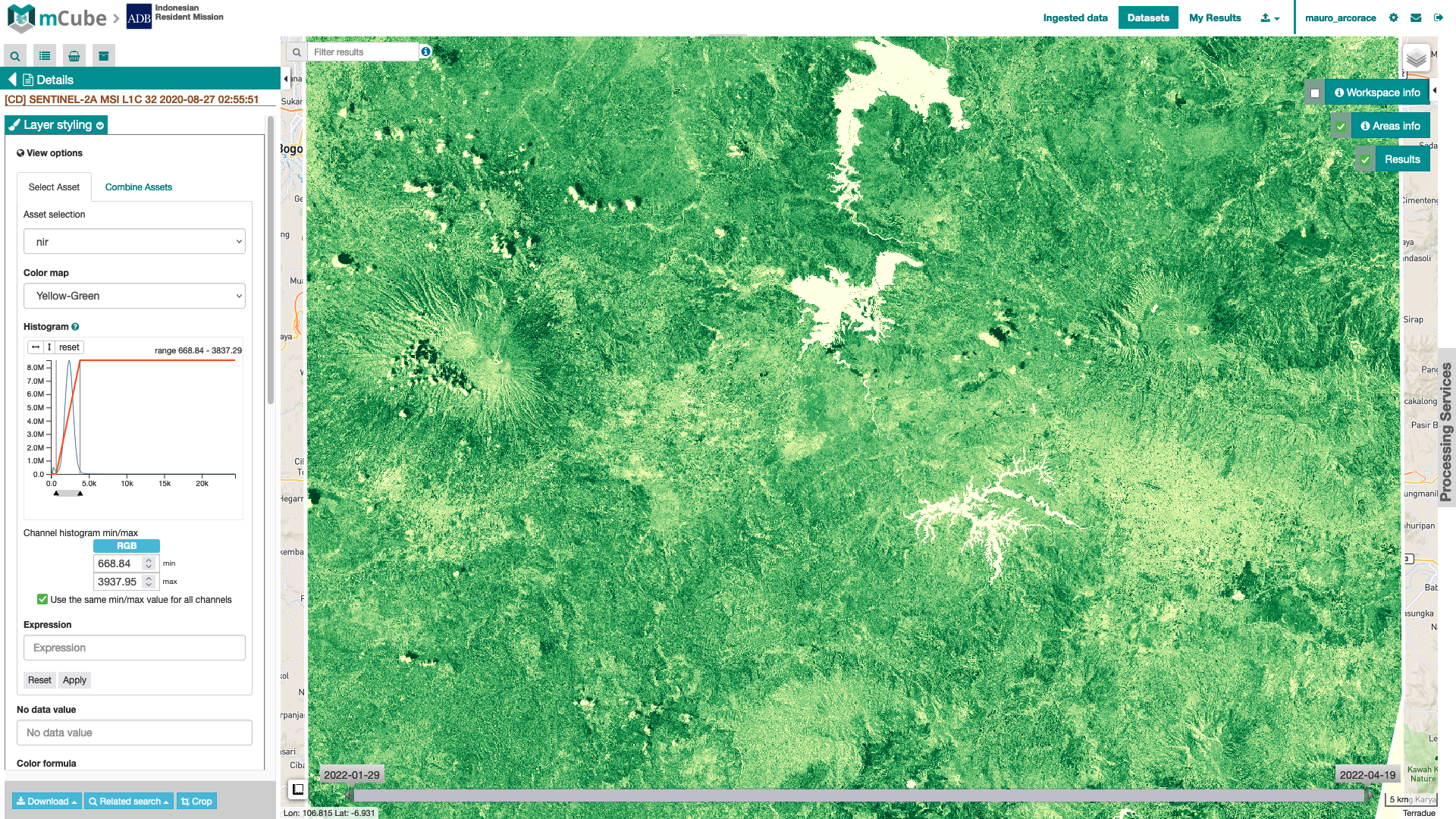
Figure 7 - Visualization of histogram for a single-band product into mCube. The image shows the histogram of the nir asset as TOA reflectances derived from a Sentinel-2 MSI L1C calibrated dataset over Bandung area, in Java, Indonesia (image credit: ESA, Copernicus).
The manual definition of min and max values can be done separately for each of the assets of the Dataset (see Figure 8). This is important, for example, while visualizing full-pol SAR data since valid ranges can be different for co-pol and cross-pol polarization given the different nature of the signal.
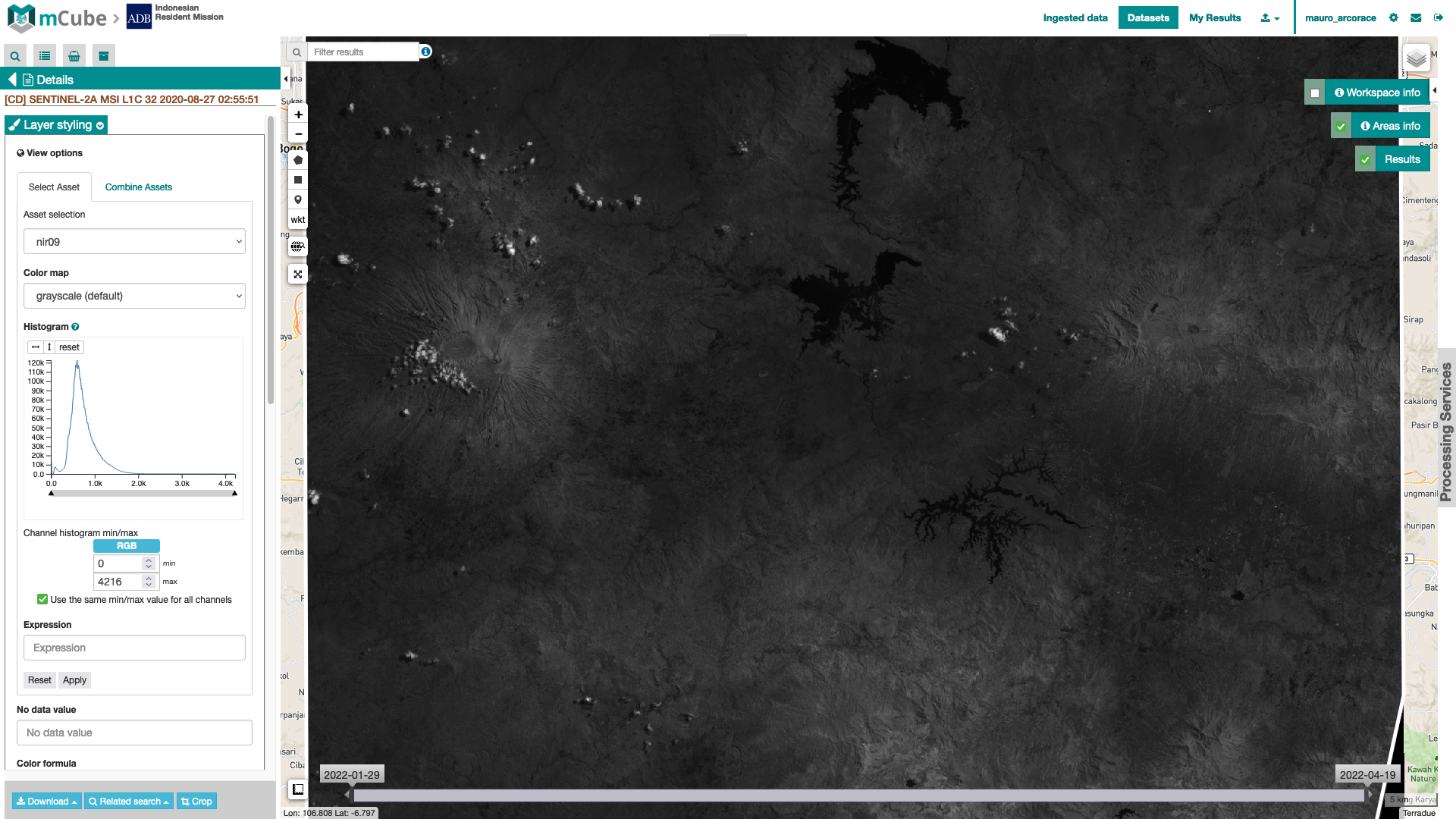
Figure 8 - Visualization of histograms for a reflectance asset in mCube. The image shows histogram for the nir09 single-band asset from the same Sentinel-2 MSI L1C data over Bandung area, in Java, Indonesia (image credit: ESA, Copernicus).
Under the Select Asset mCube offer the possibility automatically perform a 2% cumulative count cut of the histogram. The below image shows the result after the linear stretching of a nir09 asset.
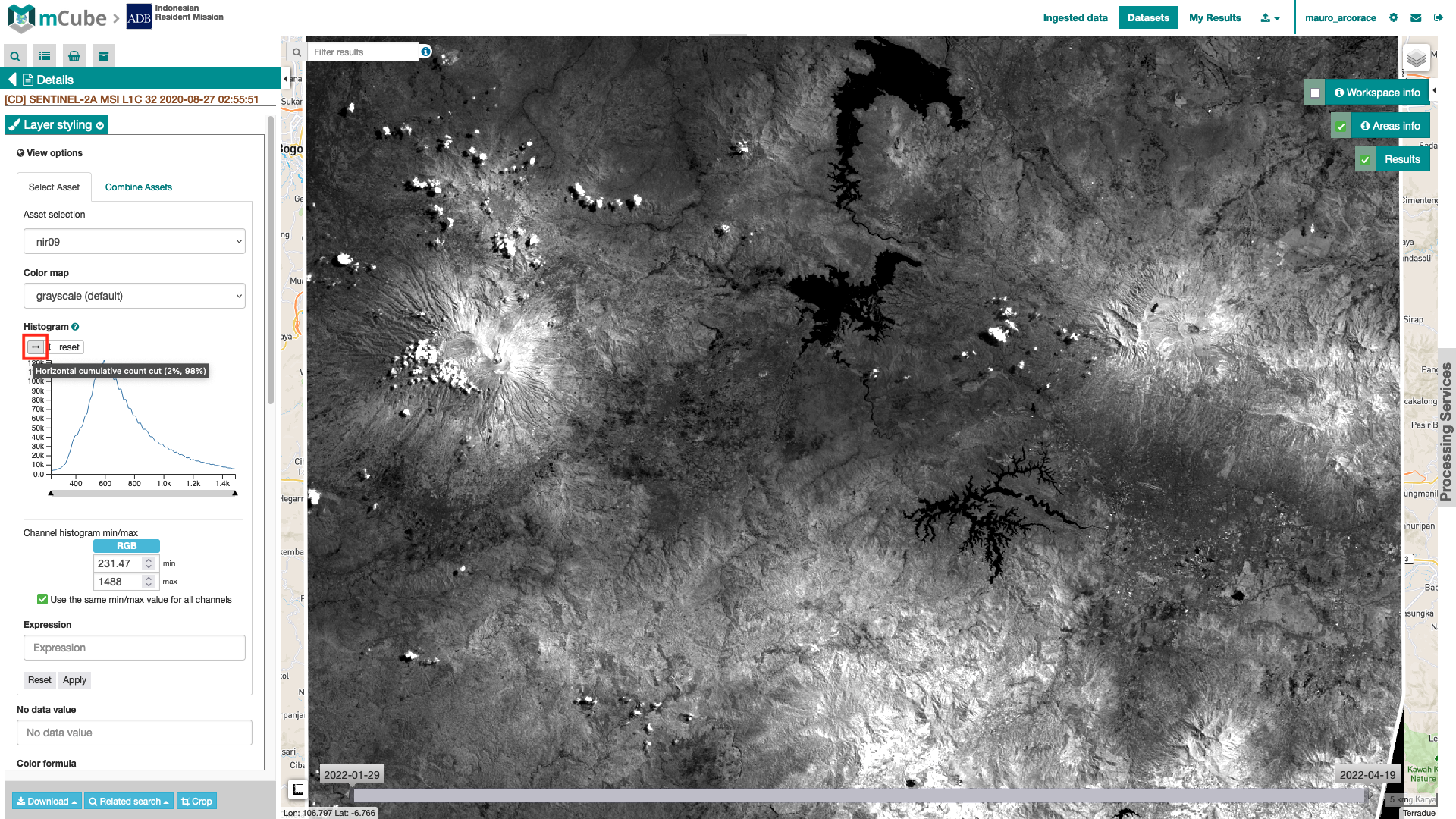
Figure 9 - Visualization of a single-band asset for nir09 TOA reflectance and associated histogram into mCube after a 2% cumulative count cut (image credit: Copernicus, ESA).
More details about the default Min Max values for the multiple physical meaning quantities can be found here.